Tuesday, July 9, 2013

Teacher Tech Tuesday - Organizing your Facebook Newsfeed


So it might be blocked at my school but Facebook still has become a huge teaching tool for me this past year. Most of my friends are fellow teachers, most of the pages I like are related to teaching, and my time is spent mostly on teacher groups and chatting with teachers. That said I do have a life outside teaching, hard to believe I know, and when I want to check out what is up with my cousins or how my friend with the new baby is doing I really don't want to search through all the teacher related posts to find the posts from them. I needed Facebook to show me teaching stuff sometimes and family and friends stuff other times, I needed a way to organize my Facebook! After a little Google and a lot of playing around I finally have a pretty organized page and want to share what I have found. Here goes:


1. Top Stories or Most Recent
This might be old news to all of you but I thought for the longest time that my newsfeed was automatically in chronological order of newest to oldest but it is not. The default setting is Top Stories.  "Top stories" means you're letting Facebook's algorithms decide what's most important. Facebook says this is decided by "lots of factors," including your relationship to the person who posted the story, how many comments and likes it got, what type of story it is, etc.The "Most Recent" option will return to your news feed to a more chronological order. The quickest and easiest edit to your news feed is switching between these and it is found at the top of your home page.
Click on "Sort" and you get the option to see just "Top stories" or "Most recent."


2. Hide News Ticker
This also may be an old trick but I love how my facebook page looks with this gone! To hide the "News Ticker," go to your home page, mouse down to the very bottom right hand corner of your screen and find the icon that looks like an open box with an arrow. 
Clicking this will make the sidebar (and therefore the ticker) disappear.


3. Set Up Lists
Now these takes more time than #1 or #2 but is sooooo worth it because this is the way to really get an organized newsfeed. I use Facebook's "Lists" functionality to set up a dedicated news feed. Once you set up a list, you can click on that list from your home page to see content from only those selected folk. So when I am in teacher mode and want to see what my favorite teacher bloggers are doing I click my Kinderland list and when I am in family mode I simply click my family list and I get only the content I want in my newsfeed!   Click Here to start your own list Once on the page you can search other lists or create your own. You can subscribe to my Kinderland list of my favorite kindergarten and first grade teacher pages by clicking here and click the subscribe button at the top right of the list page.


To create your own Interest List, go Here again and you’ll see the button for “+ Create List” at the top of the Interests page (visible in the top right of the screenshot above). Lists can have any combination of Friends, Subscriptions and Pages! To start with, Facebook displays a list of all the Pages you’ve already liked, all your Subscriptions (personal profiles to which you’ve subscribed) and Friends.

Select the choices you wish and click Next.
You can probably guess what is in my Vacation list :)

Now, another cool aspect of Facebook Interest Lists – similar to Twitter Lists – is you can choose to make the list visible to Public, your Friends, or Only Me (completely private). My Kinderland list is public so I can share it with you all but most of my other lists are private because they are only for me :)
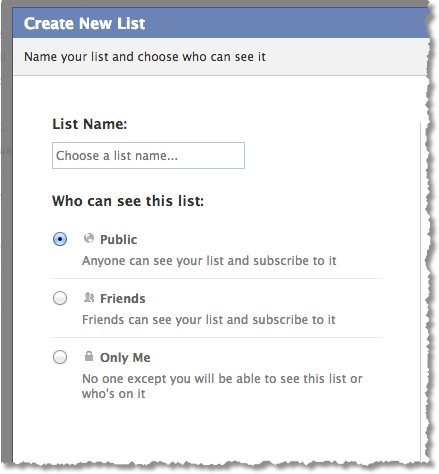
Facebook List privacy
Now that you have your lists you want to do the next step to make it fast to switch between your lists.  I found this is all from http://www.marismith.com/how-take-back-control-of-your-facebook-news-feed/

Add your Lists to your Favorites

This part can get a bit tricky to maneuver but once you’ve done it once, it’s easy! First, go back to your list of Lists (bookmarks page), you’ll see the little pencil icon next to each list. Click the icon and select Add to Favorites as shown in the screenshot below. (By the way, the little blue Interest List icon is for Lists you created; the green icon is for Lists to which you subscribe).
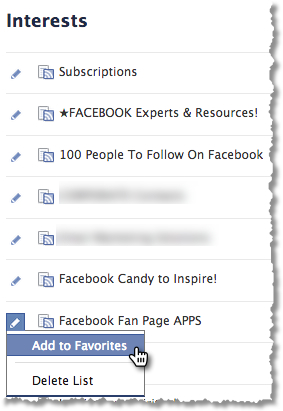
Facebook Interest List - Add To Favorites
Add an Interest List to your Favorites
Next, now go look at the list of favorites at the top left of your home page. Hover over any item and then click the little pencil icon. From there, click Rearrange. Now you can drag and drop the order of anything you have in your Favorites. You can have Interest Lists, Friend Lists, Groups, Apps, and Pages as Favorites by going through this same process. If this is new to you, you’ll soon wonder how you ever managed Facebook without Lists and Favorites! Your Favorites are visible on mobile, too.
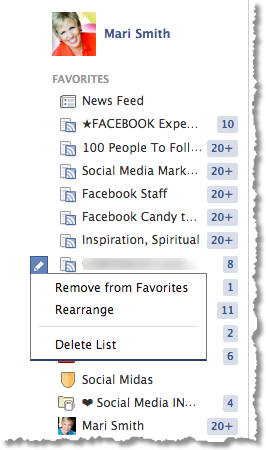
Facebook Favorites

So there are my favorite 3 ways to have a more organized Facebook feed! I can like all the pages I want and have lots of friends and still have an uncluttered feed :) Please let me know if this was helpful and how you organize your feed.

Saturday, July 6, 2013

Suite Saturday and Freebie Hop Success!

I am so excited at how well the Freebies on the Fourth Facebook hop went! Over 2,000 people went through the hop, liking pages and grabbing freebies! Were you able to grab them all? Was is such a blur that you are not sure you went to all of the AWESOME kindergarten and first grade pages? Well the hop is over but you do not want to miss out on what these fabulous teachers have to offer! Many of us have put up new freebies for our fans and great discussions and blog posts to share. Here is the full list of Facebook pages from the hop, including mine :) Hop through and make sure you like them all :)

The Kindergarten Lifestyle - Dallas, Texas  Sharing Kindergarten    Kroger's Kindergarten   My (Not So) Elementary Life  All Students Can Shine  Mrs. Lirette's Learning Detectives  The Moffatt Girls  Kinder Kraziness     Crayons and Curls  Kindergarten Korner   Maggie's Kinder Corner  Kindergarten Smiles

Joy of Kindergarten   Pocket Full of Kinders   Jen's Kinder Kids  RainbowsWithinReach    Mrs. Hodge and Her Kindergarten Kids  Wolfelicious  Teaching With Love and Laughter  Kinder-Craze     Transitional Kinder with Mrs. O  Color Me Kinder    Kreative In Kinder     Peace, Love, and First Grade

A Differentiated Kindergarten   Ms. Kerri and Her Krazy Klass  Primary Graffiti - Jacksonville, FL  Little Warriors   First Grade Blue Skies  Mrs. Hoffer's Spot  Growing Kinders  Eberhart's Explorers   Georgia Grown Kiddos   Rowdy in Room 300  Kristen's Kindergarten  Lanier's Lions

Mrs. Lee's Kinderkids  The Printable Princess  Time 4 Kindergarten  Mrs. Albanese's Kindergarten Class    A Special Kind of Class


You can grab my Daily 5 freebie from the hop by click the pic BELOW :)

I create most of my classroom items in My Memories Suite and I will be giving away a copy of version 4 this week to celebrate the success of the Freebie Hop!  My Memories Suite Version 4 has some AWESOME new features including export to SVG to use with electronic die cutters like the Silhouette! You can download a trial of My Memories Suite for free by clicking the words  My Memories Suite   This will take you to the  My Memories Suite  store where you can get the trial or buy the program. When you are ready to buy My Memories Suite put in my Share the Memories code for a $10 discount off the purchase of the My Memories Suite Scrapbook software and a $10 coupon for the MyMemories.com store - $20 value! The code is STMMMS99167


Transitional Kinder with Mrs. O Template by Ipietoon Cute Blog Design